Routing Structure Explained
The routing structure defines how container movements are organized within a load. Each route event in the routing hierarchy supports accurate tracking, visibility, and billing by documenting the container’s activity throughout its lifecycle, ensuring a clear and consistent view of how movements are structured and monitored.
Key Components
Load
A Load represents the full life cycle of a container's movement, encompassing all details about the container such as:Load Information
Driver Routing & Container Movements
Billing Information & Payments
Uploaded Documents
Driver Pay & Expenses
Notes & more

Container Move
A container move is a series of dispatched events that track a container’s movement
Example:
Prepull & Live unload at Customer has 2 container moves
Pick Container + Drop Container = Container 1 Move
Hook Container + Deliver Container + Return Container = Container 2 Move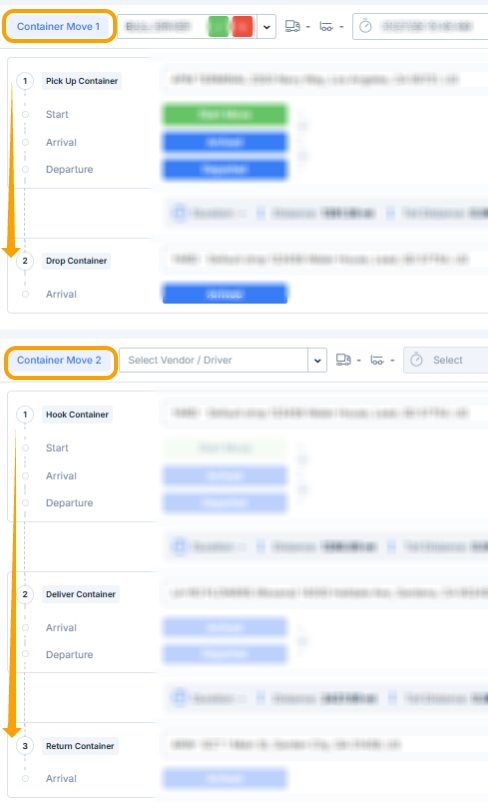
Pick and Run has1 container move
Pick Container + Deliver Container + Return Container = Container 1 Move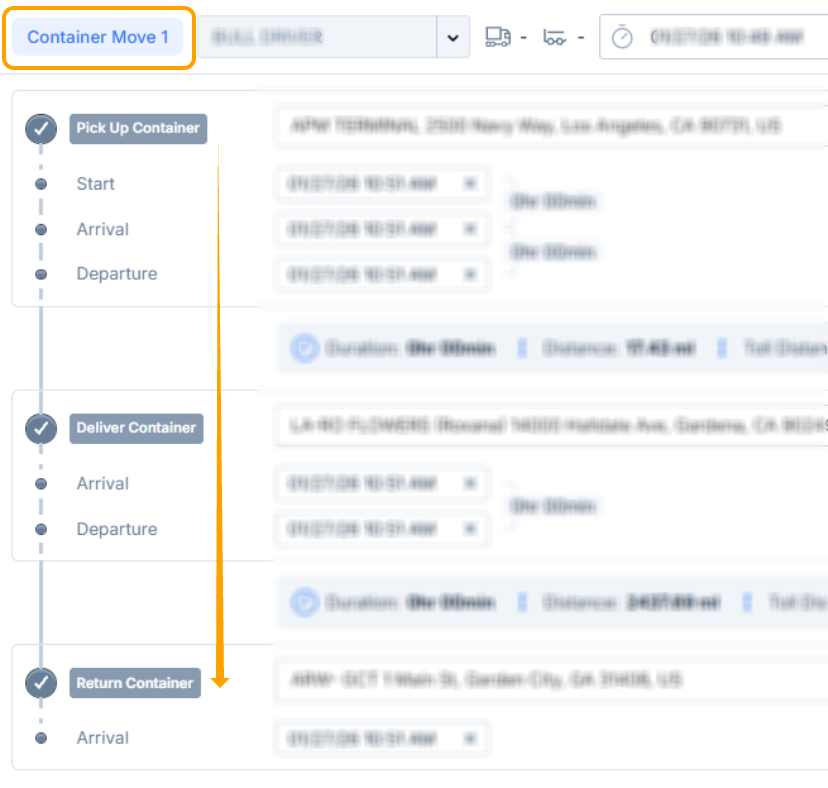
Event
Within a container move, the container activity is captured as events. The events represent the container's distinct movements of travel within a move.
Example:
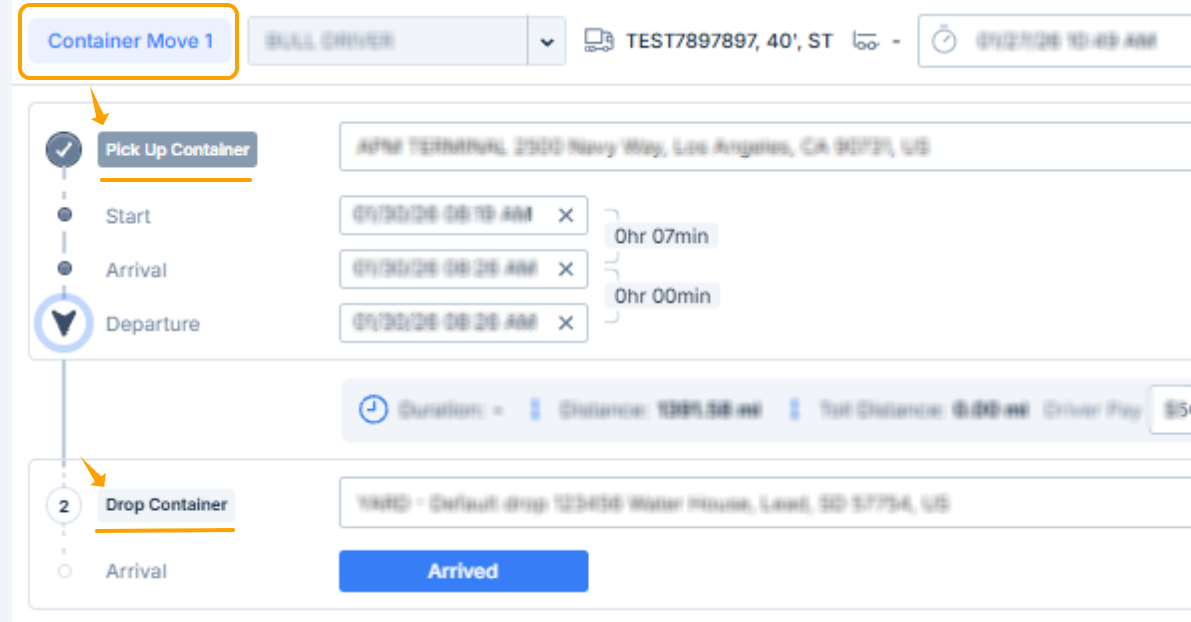
An import container is prepulled to the yard. Container Move 1 represents the prepull and contains the sequence of events required to complete the prepull.
Container Move 1:
- Prepull to a yard
Events:
Pick Up Container
Drop Container
- Leg
A leg represents a travel segment within a container move. Each leg is made up of a sequence of events that together define the container’s movement for that portion of the move.
In other words: a leg groups the steps (events) required to move a container from one point to another within a move.
Example of Legs
Leg 1: Pick Up → Deliver
Event 1: Pick Up Container
Event 2: Deliver Container
Leg 2: Deliver → Drop
Event 1: Deliver Container
Event 2: Drop Container
Each leg organizes events in a logical travel segment, making it easier to track the container’s progress and manage operations.
- Status
Status represent individual container movements occurring within an event movement.
Example:
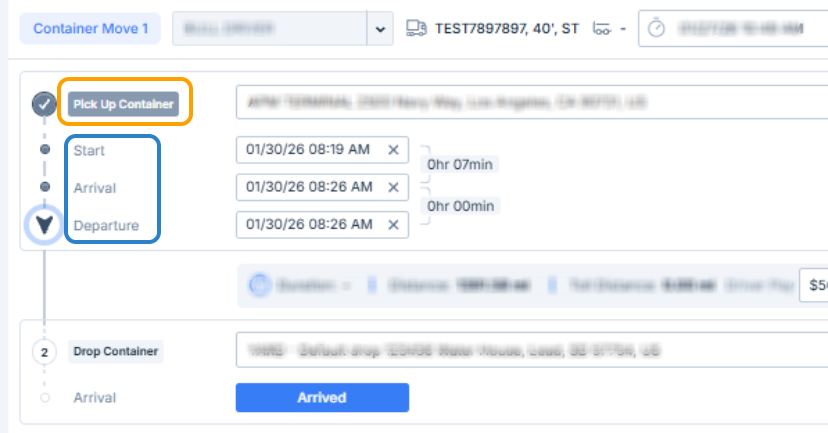
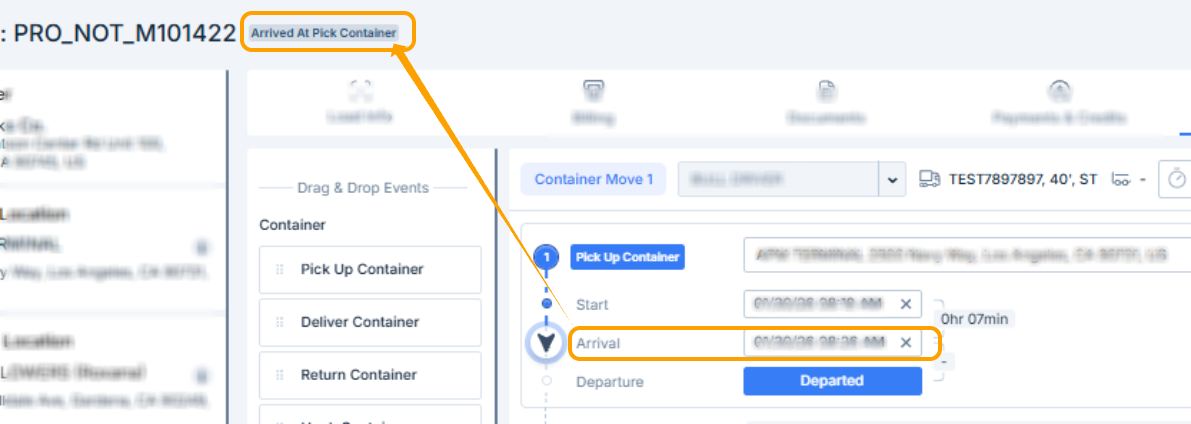
When a driver is assigned to pick up an import container, the Pick Up Container event displays three container statuses.
The event itself is highlighted in orange, while the three statuses associated with the event appear below it in blue. As each stage is completed, the container’s status is updated to reflect its progress within the event.
- Start -> Enroute to Pick Container
- Arrival -> Arrived at Pick Container
- Departure -> Enroute to - Drop, Deliver, ect. (depending on the next event type)
- A timestamped record of specific stages is recorded within an event.
Examples: Start, Arrived, Departed
Routing Hierarchy
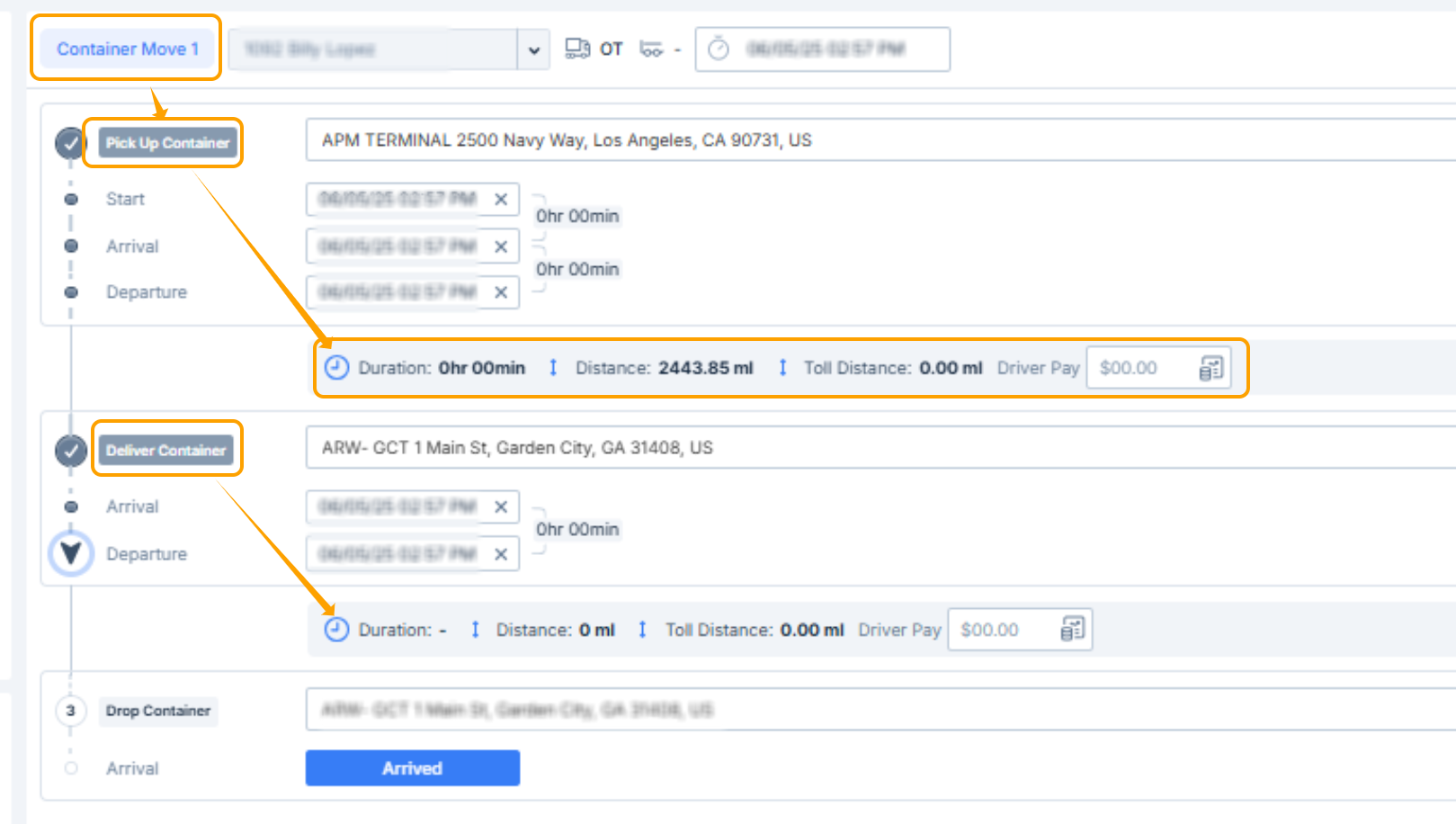
The routing structure in PortPro follows a clear hierarchy, designed to provide visibility into every step of a container’s movement. Recent updates also introduce new terminology and expanded data fields to enhance clarity and operational insight. The hierarchy of routing components is structured as follows:
The structure of routing in PortPro is organized as follows:
- Container Move
The overall assignment given to a driver.- Event
A defined action within the container move (e.g., Pickup, Delivery).- Status
The timestamp capturing the driver’s interaction with the event (e.g., Arrived, Departed).
- Status
- Event
Terminology Updates and New Features
With the latest routing update, several naming conventions and new data points have been introduced:
Pick Up Location
Refers to the location associated with the Pickup Container event.Delivery Location
Refers to the location associated with the Deliver Container event.Start Status
Displays the exact time and date when the driver initiates the event in the mobile app.Arrived Status
Captures when the driver arrives at the designated location.Departed Status
Captures when the driver leaves the location.
Key Data Points
Driver Pay
Displays projected pay for the leg. This field is editable. Updates made here are reflected automatically in the Driver Pay tab. A rate source icon indicates whether the value is system-derived (e.g., Driver Pay Rates) or manually updated.Duration (Between Legs)
Shows the time elapsed between the Departed status of one event and the Arrived status of the next event.Distance
Displays the mileage between the locations of consecutive events.Duration at Location
Measures how long the driver remained at a specific location, calculated between the Arrived and Departed statuses—useful for tracking detention.
Was this article helpful?
That’s Great!
Thank you for your feedback
Sorry! We couldn't be helpful
Thank you for your feedback
Feedback sent
We appreciate your effort and will try to fix the article